Create an upsell ruleUpdated 3 months ago
What this article covers
Use this guide to create an upsell rule in Impulse and control where that rule appears. You will learn how to choose the correct Sales Channel, limit a rule to Specific Stores, set Online Placement for online-only rules, add Trigger products, choose Upsell Products, and use Top Priority when needed.
In Impulse, upsell rules work with weight-based logic. If more than one rule could apply, the app uses rule weighting to decide what to show, unless a valid Top Priority rule is set to display first.
Before you start
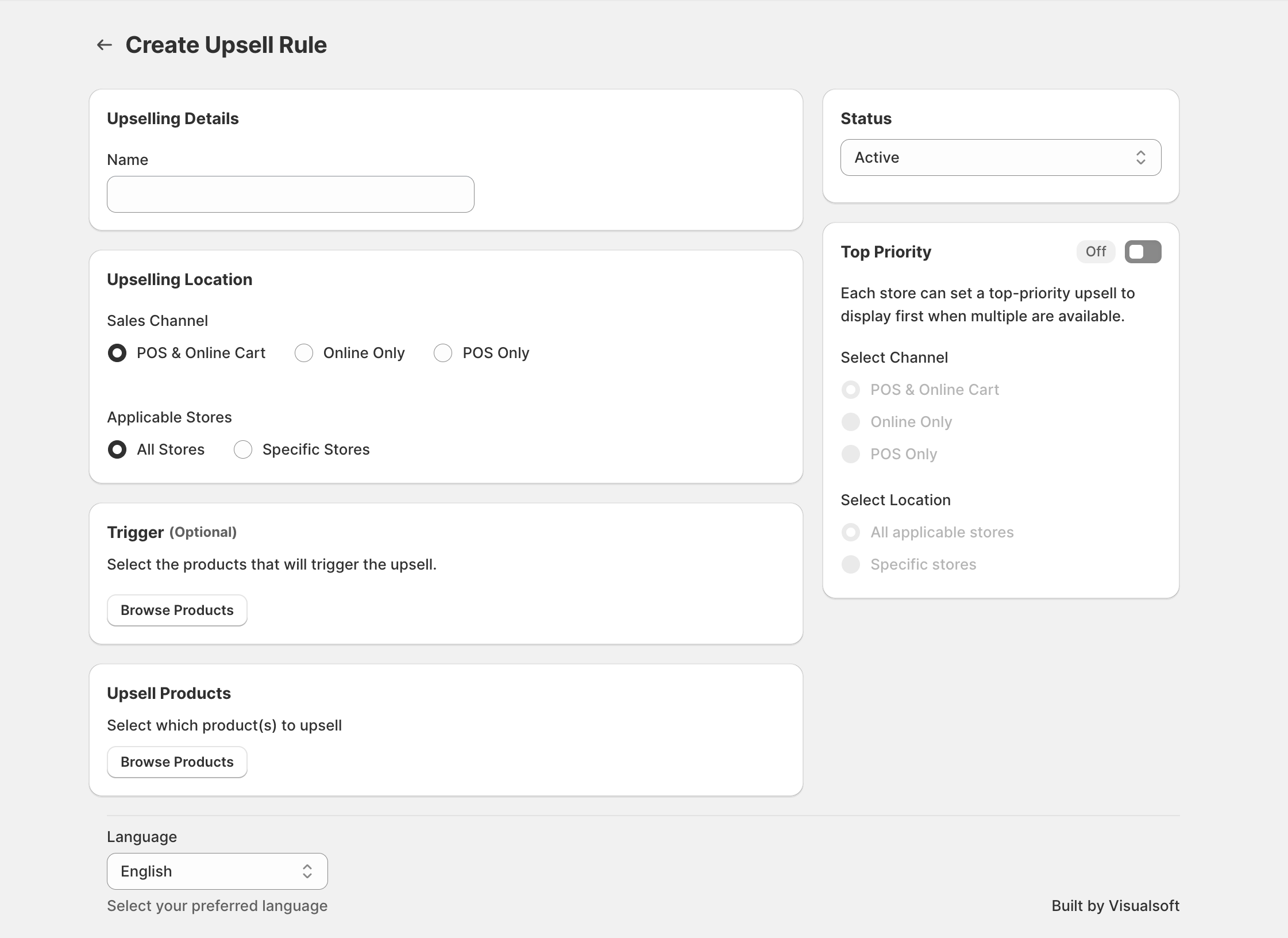
Open the app and go to Create Upsell Rule.
Make sure the Shopify products you want to use already exist in your store.
If you want to target specific physical locations, confirm your Shopify locations are active and available in Impulse.
Create the rule
In Upselling Details, enter a clear name in the Name field so the rule is easy to identify later.
In the Status panel, choose whether the rule should be Active. If you are still building the rule, you can leave it inactive until you are ready to use it.
In Upselling Location, select the correct Sales Channel for the rule.
In Trigger (Optional), click Browse Products and select the products that should cause this upsell to appear.
In Upsell Products, click Browse Products and select the products you want Impulse to recommend.
Choose the correct option in Language, such as English.
If needed, configure Top Priority, then review the rule carefully and save it.
Choose the right sales channel
The Sales Channel setting controls where the upsell rule can run. On the Create Upsell Rule screen, Impulse shows three options:
POS & Online Cart
Online Only
POS Only
POS & Online Cart
Choose POS & Online Cart when you want the same rule to work across both in-store selling and the online cart experience. This is the broadest option and is useful when the same recommendation makes sense in both channels.
Online Only
Choose Online Only when the upsell should appear only for online shoppers. When you select this option, Impulse shows an additional Online Placement field.

Use Online Placement to choose where the upsell products are shown online:
Cart — show the upsell in the cart experience
Checkout — show the upsell at checkout, if that placement is available in your setup
Online Placement appears only when Online Only is selected. You do not set this field for POS & Online Cart or POS Only.
POS Only
Choose POS Only when the recommendation should appear only in your point-of-sale workflow. This is useful for in-store add-ons that do not need to appear online.
Set the rule for all stores or specific store locations
When the selected sales channel supports store selection, the Applicable Stores area lets you decide whether the rule applies everywhere or only in selected places.
All Stores — the rule can run in every applicable location
Specific Stores — the rule runs only in the locations you choose
If you choose Specific Stores, Impulse opens a Select Stores window where you can search locations, tick the stores you want, and click Add.

This is especially useful when a promotion should run only in one branch, one region, or one store group.
Use specific store targeting when product availability, local promotions, or staff-led selling differs by location. This helps keep upsells relevant and avoids showing offers in the wrong store.
Trigger products explained
The Trigger (Optional) section controls what starts the upsell. Trigger products are the products a customer must already be buying, adding, or interacting with before the upsell rule becomes relevant.
To set trigger products:
Go to Trigger (Optional).
Click Browse Products.
Select the product or products that should activate the rule.
How trigger products work
If a customer adds one of the selected trigger products, the rule becomes eligible to show.
If you select multiple trigger products, the rule can be used for any of those selected items.
If you leave Trigger (Optional) empty, the rule is not tied to a specific trigger product list.
When to use trigger products
Accessory selling: Trigger on a main product and recommend a matching add-on.
Service add-ons: Trigger on a premium item and recommend setup, protection, or extended service.
Collection-specific upsells: Trigger on a narrow product group instead of showing the same recommendation to everyone.
Trigger products define when the rule can appear. They do not define what gets recommended. The actual recommended items are chosen in Upsell Products.
Set the products to be upsold
The Upsell Products section controls the items Impulse recommends after the rule is triggered.
To set upsell products:
Go to Upsell Products.
Click Browse Products.
Select the product or products you want to promote.
Best practices for upsell products
Choose products that make sense with the trigger product.
Keep the recommendation relevant to the sales channel. For example, some offers may work better in POS Only than online.
If you are targeting Specific Stores, make sure the upsell products are appropriate for those locations.
A rule will be less effective if the trigger products and upsell products are not closely related. Keep the recommendation easy for the customer to understand.
Use Top Priority when required
The Top Priority panel is used when you need one upsell to display first over other matching rules.
When enabled, the panel lets you choose:
Select Channel
Select Location
This means you can set a top-priority rule by channel and by store scope.

How Top Priority behaves
The panel text explains that each store can set a top-priority upsell to display first when multiple are available. This is useful when you want one recommendation to win over other eligible rules.
Important compatibility note
If you choose an unsupported combination, Impulse shows a warning message. For example:
This channel combination is not compatible. Online & In-store top priority can only be used with Online & In-store sales channel.
So if you need a top-priority rule that works across both online and in-store, make sure the main rule is also set to the combined channel option.
Use Top Priority only when you need a clear winner. For most day-to-day upsells, the app's normal weight-based logic is the better choice because it allows rules to compete naturally.
How weight-based logic works
Impulse uses weight-based logic to decide which rule should be shown when more than one rule could apply.
If only one rule matches, that rule can be shown.
If several rules match, the app uses rule weighting to decide which one should appear.
If you enable a valid Top Priority rule, that rule can be shown first for the selected channel and location scope.
This gives you two levels of control:
Weight-based logic for normal rule ordering
Top Priority for exceptions where one upsell must take precedence
Example setups
Set Sales Channel to POS & Online Cart. If needed, leave Applicable Stores as All Stores so the same rule can be used widely.
Set Sales Channel to Online Only, then choose Online Placement as Cart or Checkout. Add your trigger products and upsell products, then save the rule.
Set Sales Channel to POS Only. In Applicable Stores, choose Specific Stores, select the locations in Select Stores, and click Add.
Turn Top Priority on, then choose the correct Select Channel and Select Location values so that store shows this rule first when multiple upsells are available.
Checklist before you save
The Name clearly identifies the rule.
Status is set correctly.
The correct Sales Channel is selected.
If using Online Only, the correct Online Placement is selected.
If needed, Applicable Stores is limited to the right locations.
The correct Trigger products are selected.
The correct Upsell Products are selected.
Top Priority is enabled only if you need the rule to override normal weight-based behavior.
The correct Language is selected.